 Technology X Tomorrow's Technology Today!

Once you have created this macro, you will be able to click the ‘T Key’ button to select your option for the mouse’s macro button, as well as selecting how that macro must be enabled by how the button is pressed.

In single key settings, you can adjust the macro key to react as a specific primary function, similar to that of functions already defaulted to the other buttons found on the mouse, such as ‘Right Button’.
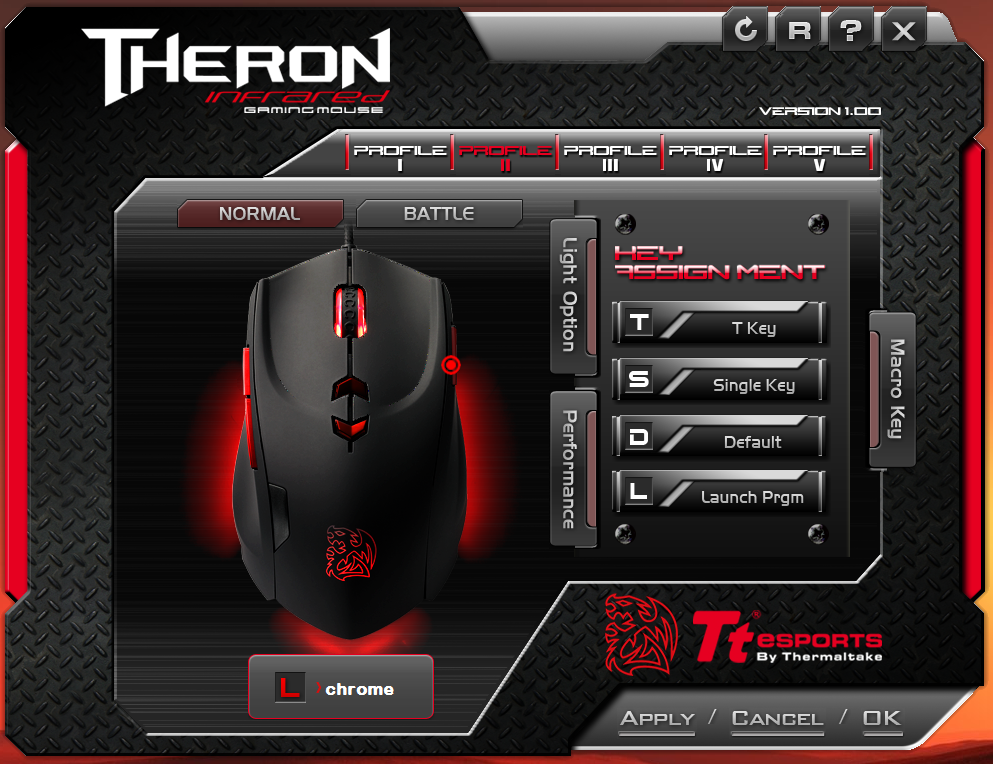
You can even have the mouse’s macro button set to launch a specific program, in our case Google Chrome has been set. You simply click this button once and the application will open.
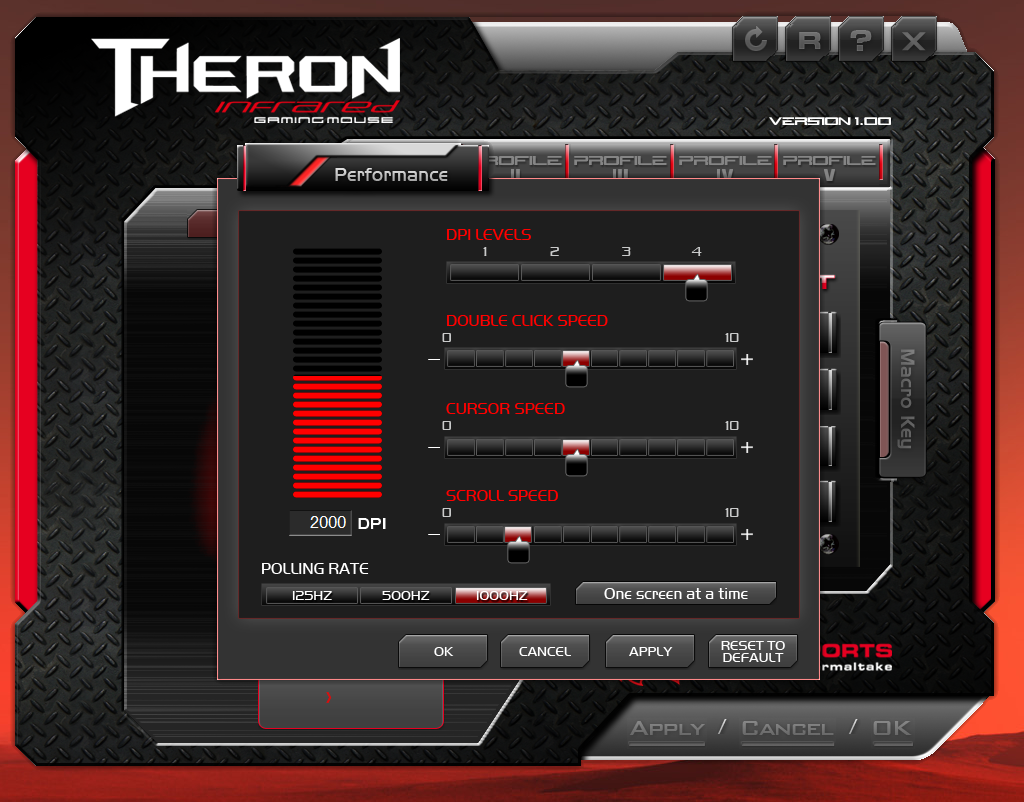
In the performance settings, you can adjust your profile to your gaming style. In our experiments, we adjust each DPI level to a different denomination of 1000 DPI for testing, and altered the double click, cursor, and scroll speeds. If needed, you can also press the ‘Reset to Default’ button, which will return your THERON Infrared to its original condition.
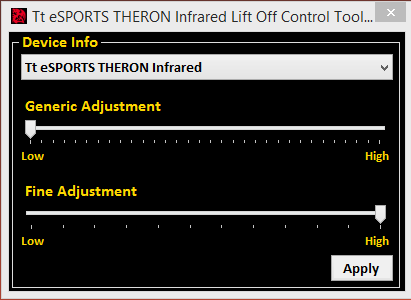
TT ESPORTS THERON INFRARED LIFT OFF CONTROL TOOL
The Tt eSPORTS lift off control tool allows you to adjust the sensor’s ability to read the surface below it when it is lifted away from the mousepad or surface. This is a function that is not as prevalent today as it was in previous years with different FPS games. It was typically used to create a quicker path for the cursor to move, by setting the mouse to a low level and lifting the mouse to move the cursor.